Caption QA Checklist: Review Meaning, Timing and the Final Export
A practical four-pass caption review workflow for short videos, with fictional error examples, an export checklist and a reusable review log.
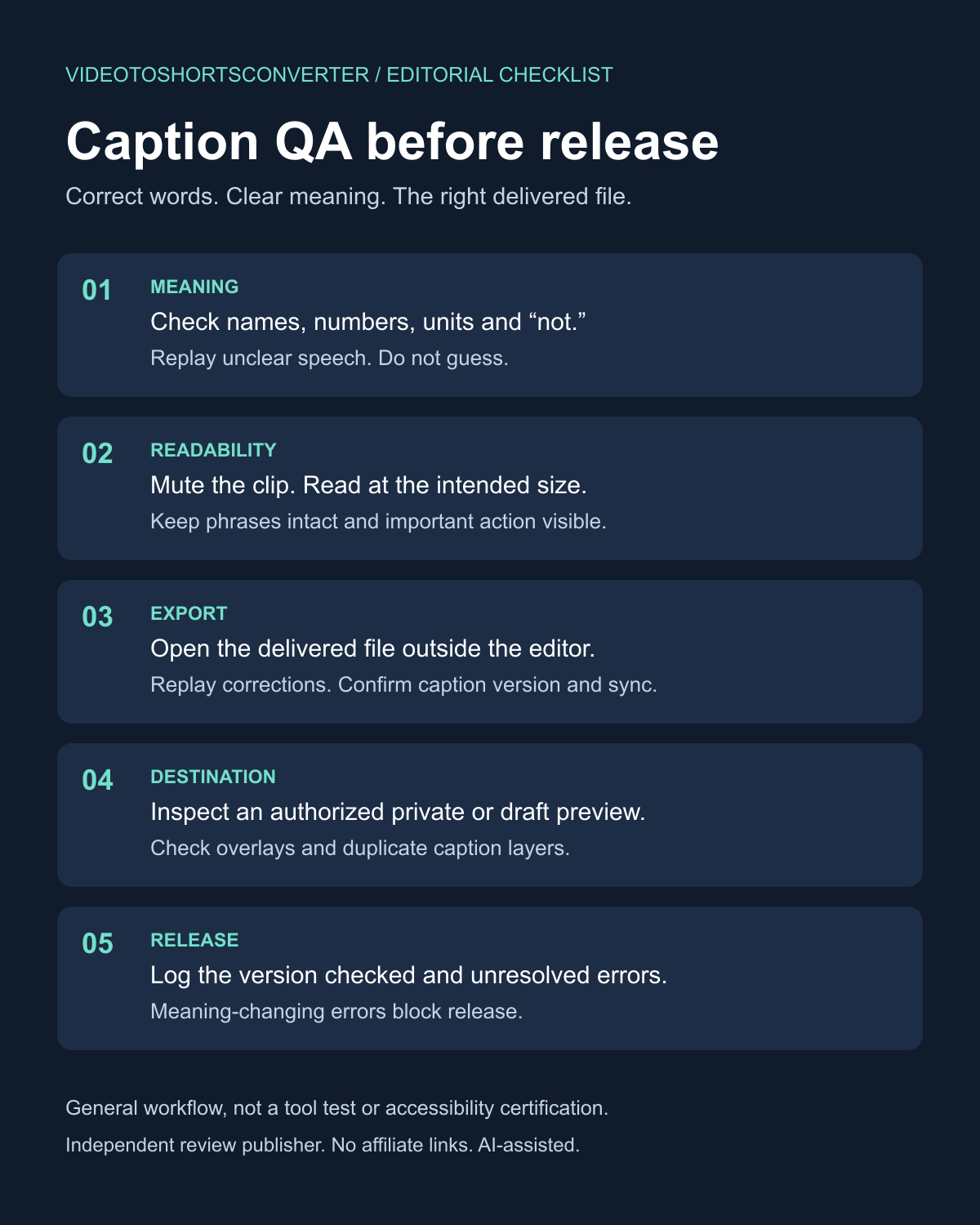
Review automatic captions against the recording, read them without sound, check the exported file and inspect the destination preview before publishing. Correct words alone are not enough: timing, speaker identity and interface overlays can still change what a viewer understands.
This is a practical editorial workflow, not a tool benchmark or an accessibility certification. The examples below are fictional. No accuracy percentages, view increases or hands-on software results are claimed.
Start with the version you will deliver
Keep the source recording, exported video and caption file together. Give each version a clear name, such as interview-clip-v03.mp4 and interview-clip-v03.en.srt. A correction in an editing timeline does not prove the old export was replaced.
Create a log with timecode, heard speech, caption text, correction and checked export version. Add a status of open or checked. If another person reviews the clip, this record tells them exactly which issue to replay.
If you are still choosing the passage to cut, first check that the clip preserves the original context. Caption review cannot repair a misleading edit that removes the speaker's qualification.
Pass one: listen for meaning
Play the audio with captions visible. Compare the words with what is audible. A speaker-approved script or transcript can help with unfamiliar terms, but the final recording takes priority when the speaker departed from the script.
Give extra attention to negation, names, quantities, dates, units and conditions. These small details can carry most of an instruction's meaning.
| Fictional speech | Faulty caption | Review action | | --- | --- | --- | | Do not export until the client approves. | Do export until the client approves. | Restore the missing negation and replay the sentence. | | The offer is fifteen dollars per month. | The offer is fifty dollars per month. | Verify the audible number and approved offer details. | | Use five millilitres. | Use five litres. | Correct the unit; do not treat it as cosmetic. |
Do not guess an unfamiliar name from a plausible spelling. Check an approved name list, the source material or the speaker. Mark unclear audio as unresolved instead of confidently inventing a word.
Check speaker changes too. When the speaker is not obvious from the image, an appropriate label may help. Include meaningful non-speech audio when it explains the scene, such as an alarm that causes someone to react. Captions represent relevant sound as well as dialogue; W3C's caption guidance explains that distinction.
Pass two: read without relying on the audio
Mute the clip and watch it at the size the audience will use. This is a readability check, not proof of full accessibility.
Look for text that disappears before the thought can be read, crowded blocks and line breaks that separate a number from its unit. Keep names together where possible. Break at natural phrase boundaries and preserve punctuation that explains the sentence.
There is no single font size, line length or reading speed that fits every video. A dense technical explanation and a short conversational line need different treatment. If a caption feels rushed, adjust the edit or allow appropriate reading time. Do not silently remove a condition to make the text fit.
Check text over the brightest, darkest and busiest scenes. A shadow that works on a static shot may fail when the background changes. Also check whether the caption hides a chart label, a demonstrated action or someone's mouth. A large caption can be readable and still obstruct the information the viewer needs.
Pass three: open the actual exported file
Play the export outside the editing timeline. Check the opening, every corrected section, scene changes and the ending, then review the complete short clip.
- Confirm that this is the intended version, language and aspect ratio.
- Look for missing characters, cut-off text and captions that remain after speech ends.
- Listen for timing changes introduced by a trim or transition.
- If there is a separate caption file, load it with the delivered video and check both together.
- Confirm that the final correction reached the export rather than only the project file.
Burned-in captions are part of the image. A separate caption track is selectable where the player supports it. Neither should be assumed to replace the other in every delivery context. If both are present, inspect playback with captions enabled to catch duplicate layers.
For example, imagine v02 says "fifty" and the project has been corrected to "fifteen." The review stays open until v03 plays the corrected text at the right moment. Recording "fixed in editor" is useful progress, but it is not export approval.
Pass four: inspect the destination preview
Use an authorized private or draft preview on the intended platform when available. Interface buttons, descriptions and controls can cover text that was clear in a local player. Check the current preview rather than treating a fixed safe-area diagram as universal.
If the platform generates another caption track, inspect that version separately. YouTube explicitly recommends reviewing automatic captions because recognition can misrepresent speech; its automatic-caption help page describes errors and limitations.
Watch the processed preview after upload. Check position, sync, language and duplicate captions. An upload processing successfully does not prove its captions are correct.
This step depends on a working, authorized account. If verification or a warning blocks the preview, record the destination check as unavailable. Do not mark it checked or create another account to work around the block.
Decide what blocks release
Unresolved errors that change meaning, identify someone incorrectly or make essential text unreadable should block publication. Cosmetic preferences can be recorded for a later revision when they do not impair understanding.
After a correction, replay the surrounding sentence in the final export. If the fix changes timing or the edit, review that affected section again. Keep the completed log with the delivered version so that a later revision has a clear starting point.
Copyable caption review record
Download the caption review log (CSV). Open it in a spreadsheet or a text editor. The first row is a fictional missing-negation example, not an actual recording or tool test. Delete it before starting your own review; five empty review rows follow it.
Use one row per issue or pass checkpoint. Record the source, export and caption-track versions, intended destination, timecode, correction and status. Use open, fixed-in-editor, checked-in-export or unavailable; a destination check stays unavailable until you can inspect the processed preview. A checked row is not approval of the whole clip. Recheck affected rows after changing the export.
For private client recordings, use neutral project IDs and timecodes instead of client names, private links or verbatim sensitive speech. Keep the log with the authorized project files under the same access and retention rules. Do not upload it to a public spreadsheet or share it without permission. When pasting untrusted transcript text into a spreadsheet, import the columns as text so formula-like content is not executed.
Source version:
Export version:
Caption track version:
Destination and aspect ratio:
Meaning pass: open / checked
Muted readability pass: open / checked
Export playback: open / checked
Destination preview: open / checked / unavailable
Unresolved release blockers:

Timecode | Heard speech | Caption text | Correction | Checked export | Status
Do I need to review captions if the spelling looks right?
Yes. Check meaning and timing against the recording. A missing negation, incorrect unit or speaker change can be misleading even when the remaining words are spelled correctly.
Is watching the muted video enough?
No. Muted playback helps assess readability. Listening to the recording checks whether the text represents the speech. Export and destination checks catch different problems again.
Does this workflow guarantee more views?
No. It is a quality-control procedure, not a distribution forecast. It does not establish compliance with every accessibility requirement either.
If you need the earlier production steps, see our guide to generating captions. Treat software features and plan limits as things to verify with the provider before choosing a workflow.
Editorial disclosure: VideoToShortsConverter publishes independent reviews and comparisons and may earn commissions from affiliate links elsewhere on this website. This guide contains no affiliate links or paid-tool recommendation. Prepared with AI assistance; the workflow and fictional examples are original editorial material.
Enjoyed this article?
Get more tips like this delivered straight to your inbox every week.
No spam, ever. Unsubscribe anytime with one click.